
Macbook Air 11" A1370/A1465 Keyboard Backlight (2011-2015)
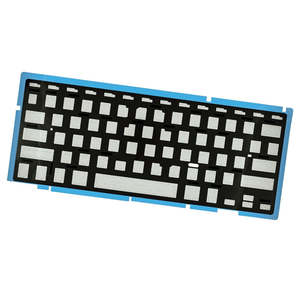
- Replacement US keyboard backlight
- Suits Macbook Air 11" A1370/A1465 (Mid 2011, Mid 2012, Mid 2013, Early 2014 and Early 2015)
- P/N: 661-6072, 661-6629, 661-7473
Replace a malfunctioning keyboard backlight compatible with a model A1370/A1465 11" MacBook Air with Retina display from 2011 to 2015.
Part Includes:
- Replacement US Keyboard Backlight
- 12 Month Warranty
Please Note
The aluminum upper case, keyboard and keyboard screws are not included. Specifications
- Part Type: Replacement keyboard backlight
- Compatible Part Number: 661-6072, 661-6629, 661-7473
- Keyboard Type: US version
- Warranty: 12 Months How do I find my Model number? Compatible Model Numbers MacBook Air 11" Early 2015 Model Number (A Number)
- A1465 EMC Number
- EMC 2924 Macbook Air 11" 2015 How do I find my Model number? Model Identifier
- MacBookAir7,1 Device Number (M Number)
- MJVM2
- MJVP2 Please note, to make searching the device number (M Number) easier, we have only listed the part numbers (First 5 characters), we have removed the region numbers as there is no difference in parts. For example, if "M Number" is "MC922LL/A". we remove the "region" portion and everything after (the "LL/A" at the end) leaving us with "MC922". More info Less info MacBook Air 11" Early 2014 Model Number (A Number)
- A1465 EMC Number
- EMC 2631 Macbook Air 11" 2014 How do I find my Model number? Model Identifier
- MacBookAir6,1 Device Number (M Number)
- MD711
- MD712 Please note, to make searching the device number (M Number) easier, we have only listed the part numbers (First 5 characters), we have removed the region numbers as there is no difference in parts. For example, if "M Number" is "MC922LL/A". we remove the "region" portion and everything after (the "LL/A" at the end) leaving us with "MC922". More info Less info MacBook Air 11" Mid 2013 Model Number (A Number)
- A1465 EMC Number
- EMC 2631 Macbook Air 11" 2013 How do I find my Model number? Model Identifier
- MacBookAir6,1 Device Number (M Number)
- MD711
- MD712 Please note, to make searching the device number (M Number) easier, we have only listed the part numbers (First 5 characters), we have removed the region numbers as there is no difference in parts. For example, if "M Number" is "MC922LL/A". we remove the "region" portion and everything after (the "LL/A" at the end) leaving us with "MC922". More info Less info MacBook Air 11" Mid 2012 Model Number (A Number)
- A1465 EMC Number
- EMC 2558 Macbook Air 11" 2012 How do I find my Model number? Model Identifier
- MacBookAir5,1 Device Number (M Number)
- MD223
- MD224 Please note, to make searching the device number (M Number) easier, we have only listed the part numbers (First 5 characters), we have removed the region numbers as there is no difference in parts. For example, if "M Number" is "MC922LL/A". we remove the "region" portion and everything after (the "LL/A" at the end) leaving us with "MC922". More info Less info MacBook Air 11" Mid 2011 Model Number (A Number)
- A1370 EMC Number
- EMC 2471 Macbook Air 11" 2011 How do I find my Model number? Model Identifier
- MacBookAir4,1 Device Number (M Number)
- MC968
- MC969 Please note, to make searching the device number (M Number) easier, we have only listed the part numbers (First 5 characters), we have removed the region numbers as there is no difference in parts. For example, if "M Number" is "MC922LL/A". we remove the "region" portion and everything after (the "LL/A" at the end) leaving us with "MC922". More info Less info Installation Help
Checkout the video above for assistance in completing this repair
Here is some tools you may need to help you complete the repair.
- P5 Pentalobe Screwdriver
- T5 Torx Screwdriver
- T8 Torx Screwdriver
- Fine Tipped Curved Tweezers
- Black Spudger
- Macbook Pro Keyboard Screws
Here are some helpful tips to assist you in completing a safe repair on your device. If you are unsure of something or have any quesions, please feel free to either by phone (0508 IGADGET) or by email
- Always track your screws to avoid putting back in the wrong place and damaging your device. You can draw a picture of your laptop and tape the screws to the right places or use a screw mat
- Always power down your device prior to working on it
- Make sure